Getting Started
Set up Dicty on macOS and Windows, configure permissions, and record your first voice capture.
Dicty is a native cross-platform voice-to-knowledge engine for macOS and Windows. It combines ultra-fast on-device speech transcription (via Metal GPU acceleration on Mac and AVX2 CPU instructions on Windows) with cloud/local LLM intelligence to transform spoken thoughts into perfectly formatted text, meeting notes, and synchronized architectural documentation.
Prefer to install immediately? Download the desktop installer for Windows or Mac and follow the 60-second onboarding wizard.
System Requirements#
macOS#
- Operating System: macOS 13.0 (Ventura), macOS 14 (Sonoma), macOS 15 (Sequoia) or later.
- Architecture:
- Apple Silicon (M1, M2, M3, M4 or later) — Recommended: Leverages Apple Metal GPU shaders and unified memory for ultra-fast, zero-latency voice transcription.
- Intel-based Macs: Supported via Universal binary builds.
- Memory: 8 GB RAM minimum (16 GB+ recommended for running large local models).
Windows#
- Operating System: Windows 10 (64-bit) or Windows 11 (64-bit).
- Architecture: x64 architecture with AVX2 instruction set support (standard on modern Intel and AMD processors).
- Runtime: Built on a lightweight Tauri v2 shell with bundled Python backend engine and Whisper.cpp runtime. Zero extra prerequisites needed.
- Memory: 8 GB RAM minimum (16 GB+ recommended).
Installation#
Windows Installation (Early Alpha)#
Windows Early Alpha: Dicty for Windows is currently in early alpha preview. Core local Whisper dictation, floating HUD overlay, and auto-pasting are working, but you may encounter early bugs or rough edges. Please report any issues on GitHub Issues or chat with us on Discord.
- Download Installer: Grab the latest
Dicty_x64-setup.exefrom the Download page or GitHub Releases. - Run Setup: Double-click the installer. Dicty installs cleanly into your local user profile without requiring administrator privileges.
- Launch & Tray: Once launched, Dicty docks neatly into your Windows Taskbar System Tray (notification area). Right-click the icon anytime to access Settings, Mode Presets, or Quit.
- Dictate: Place your cursor in any active app (VS Code, Slack, Word, browser) and press Ctrl Space or Alt Space to open the floating HUD and dictate.
macOS Installation#
Option 1: Homebrew (Recommended)
Install Dicty directly using our official Homebrew Tap:
brew tap dicty-io/dicty && brew install --cask dicty
First Launch (if needed)
If macOS Gatekeeper displays an unidentified developer warning on first launch, run:
xattr -cr /Applications/Dicty.app
Updating Dicty via Homebrew
# 1. Fetch latest commits from tap
brew update

# 2. Upgrade the dicty cask
brew upgrade --cask dicty
Uninstalling Dicty
- Standard Uninstall (keeps models & history):
brew uninstall --cask dicty - Complete Purge (wipes models & data):
brew uninstall --cask --zap dicty
Option 2: Direct DMG Download
- Download
Dicty.dmgfrom the Download page or GitHub Releases. - Open the
.dmgand dragDicty.appinto your Applications folder. - Launch Dicty from Spotlight or Launchpad.
Permissions Setup#
macOS Permissions#
When you first launch Dicty on macOS, the onboarding window guides you through granting essential system permissions:
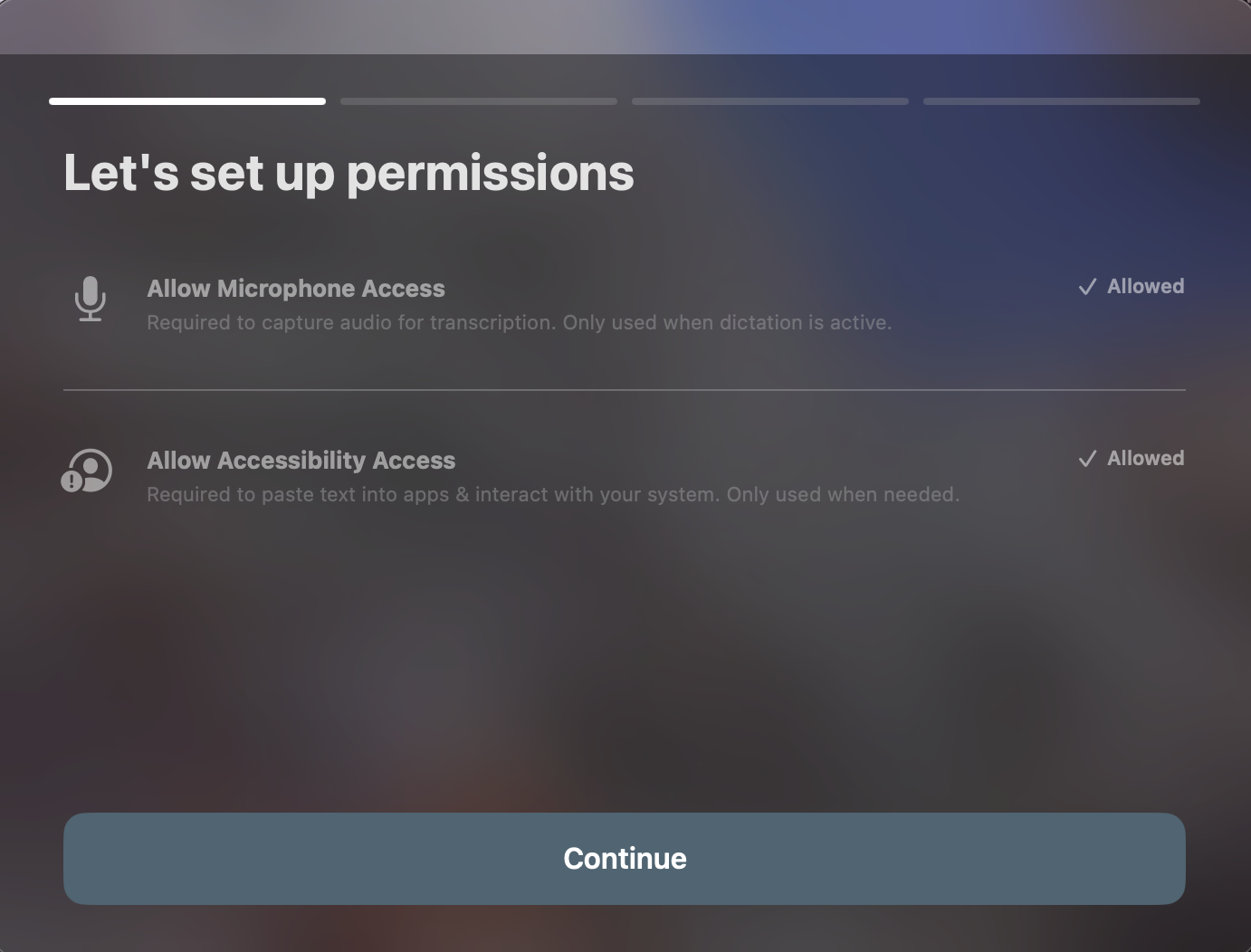
| Permission | Why Dicty Needs It |
|---|---|
| Microphone Access | Records pristine 16kHz audio from your chosen input device with zero latency. |
| Accessibility Permissions | Allows Dicty to automatically simulate keystrokes (⌘V) and paste formatted transcripts into your active app. |
Windows Permissions#
- Microphone Access: Ensure Settings → Privacy & Security → Microphone allows desktop applications to access your microphone.
- Keystroke Simulation: Dicty uses native Win32
SendInputhooks to restore active window focus and paste text automatically without requiring special accessibility entitlements.
Default Keyboard Shortcuts#
Dicty operates as a lightweight background utility with customizable global hotkeys:
| Action | macOS Shortcut | Windows Shortcut |
|---|---|---|
| Start / Stop Recording | ⌥ Space or Right ⌘ | Ctrl Space or Alt Space |
| Cancel & Discard Recording | Esc | Esc |
| Quick Mode Switcher HUD | ⌥ ⇧ M | Ctrl ⇧ M |
| Open Settings & Preferences | ⌘ , | Right-click Tray Icon → Settings |
Your First Capture#
- Place your text cursor in any application (e.g. VS Code, Cursor, Slack, Notion, Word, or browser).
- Press your global shortcut (⌥ Space on Mac or Ctrl Space on Windows).
- A floating HUD overlay appears with an animated audio equalizer and live partial transcript streaming.
- Speak your message naturally.
- Press the shortcut again. Dicty processes the audio locally, applies smart punctuation and formatting, and immediately pastes the text at your cursor.
Community & Discussion#
Have questions, want to share custom prompt ideas, or discuss features?
- Join our official Discord Community to chat directly with the creators and fellow users.
- Report bugs on GitHub Issues or vote on feature requests on our Public Roadmap.